
Hey there, friend. If you love your old GameCube and want to keep playing your favorite games in the easiest way possible, you are going to like what you read here. In 2026, many people still enjoy their GameCube consoles because they feel special and fun. The flippydrive app helps you manage games on your FlippyDrive hardware without any trouble. It makes everything smoother for both new players and those who know a lot about GameCube already.
Introduction
The flippydrive app is a helpful computer program that works with the FlippyDrive piece inside your GameCube. It lets you handle your game files right from your desk. Many folks in 2026 want simple ways to enjoy old games without hunting for scratched discs or worrying about broken drives. This little app takes care of that.
It matters a lot for GameCube users today because it saves time and keeps your collection safe. You can play games from a small memory card or even send them through your home Wi-Fi. The app works closely with the FlippyDrive hardware to make your console feel fresh and ready for fun. Beginners find it kind and easy, while advanced users like the powerful tools hidden inside. Let us walk through everything together, nice and slow, like friends chatting over a game.
What is the FlippyDrive App Exactly
The flippydrive app serves as the main helper for your FlippyDrive hardware. Its main job is to connect your computer to the GameCube so you can move games, fix files, and set up everything just right. Without the app, you would need to take your console apart every time you want to add new games. With it, you stay comfortable at your desk.
You can use the app in different ways. There is a nice picture screen, called a desktop GUI, that shows buttons and folders so you can click and see what is happening. Some people like the simple text commands or server options for running things quietly in the background. Both choices work well.
The good news is the flippydrive app runs on Windows, Linux, and macOS computers. This means almost anyone with a regular home computer can use it. The current versions in 2026 feel smooth and reliable. Updates come out from time to time, and the app makes it simple to grab the newest one and put it on your memory card.
Key Features of the FlippyDrive App
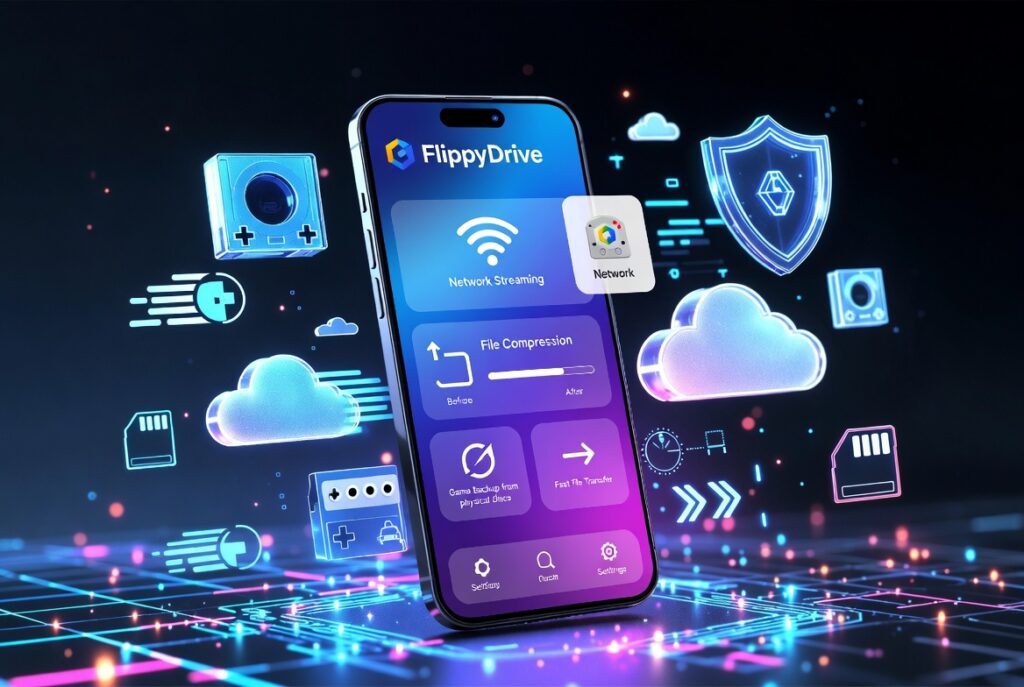
One of the best parts is how the app helps you manage the game server. You can turn on network streaming so your GameCube pulls games straight from your computer over Wi-Fi. This feels like magic when it works because you do not even need to touch the memory card often.
The app also has strong tools for file compression. It changes big game files into a special .fdi format that takes up much less space. Smaller files mean you can fit way more games on one memory card. You pick a file or a whole folder, choose how strong you want the squeeze, and let it work. There are even options to use more of your computer’s power to finish faster.
Game backup and disk tools are another friendly helper. You can copy your real GameCube discs straight to files on your computer. This protects your old collection so you can play without wearing out the original discs. File transfer is easy too. You can send things to the memory card or across the network with just a few clicks.
Settings and setup live in one clean place. You can change how the app connects, pick folders, and adjust small details that make everything run better. On top of that, the app supports folder navigation, shows game icons nicely, and gives extra small tools that make daily use feel smooth and fun.
Benefits of Using the FlippyDrive App
Using the flippydrive app saves you a lot of time when you manage your GameCube games. Instead of spending hours moving things around, you finish tasks in minutes. Your workflow becomes quick and calm.
The special .fdi files work really well with the hardware. Games load fast and take up less room, so your memory card feels bigger. This means better performance and fewer worries about running out of space.
Setting up Wi-Fi streaming becomes much easier. Once you learn the first time, you can send games from your computer without getting up. It feels like having a huge game library ready whenever you want to play.
Your physical game collection stays safe because you make good backups. You can keep the real discs on a shelf and play the safe copies. Many people say this gives them peace of mind.
Even if you are not great with computers, the friendly pictures and clear buttons help you feel confident. Non-technical friends enjoy using it without stress. The app also works nicely with CubeBoot and Swiss tools already inside the hardware, so everything talks to each other in a helpful way.
System Requirements and Installation
Your computer needs a fairly new operating system, but most home computers from the last few years work fine. You need enough free space on your hard drive for game files and a steady Wi-Fi or cable connection for the best results.
To get started, visit the official places to download the newest version. Always pick the stable one so everything runs without surprise problems. The file comes as a simple zip package for your computer type.
Installation is straightforward. Unzip the file, open the program, and follow the clear steps on screen. The first time you open it, the app may ask for permission to use your network. Say yes so it can talk to your GameCube.
After launch, take a moment to pick your game folder and test the connection. Most people have no trouble at all. If something feels stuck, check that your GameCube is powered on and close to your Wi-Fi. Simple restarts usually fix small hiccups.
How to Use the FlippyDrive App: Complete Beginner Guide
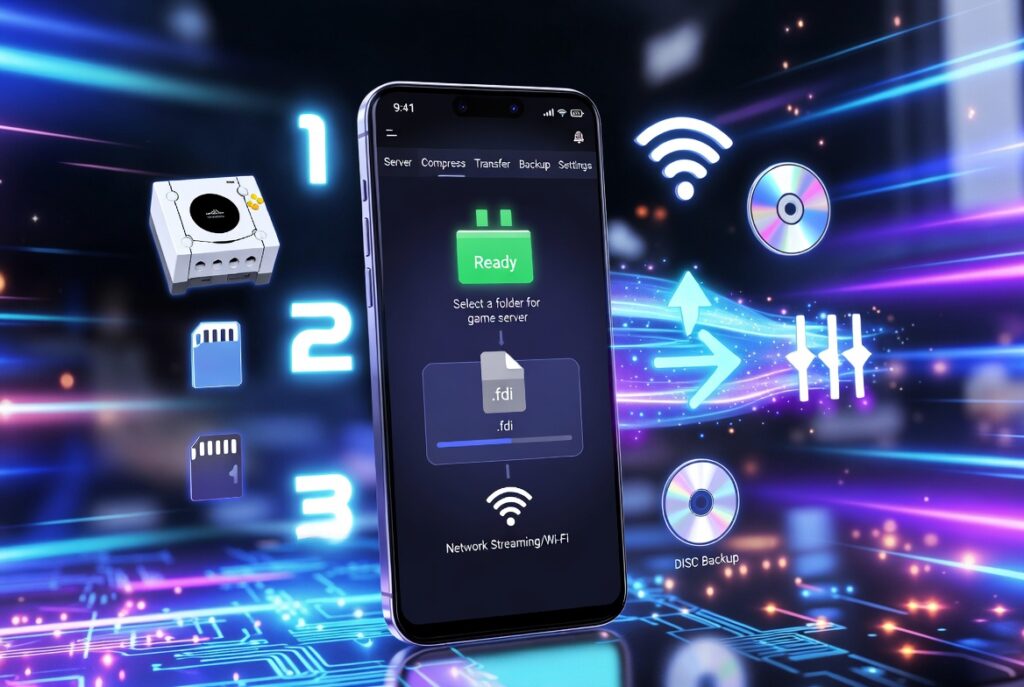
When you first open the flippydrive app, you will see clear tabs at the top. Each one handles a different job. Take your time to click around and get used to the layout. It feels welcoming after just a few minutes.
Start by setting up the game server. Choose the folder on your computer that holds your games. The app shows you the address to type into your GameCube settings. Turn on the server and watch the green light that says it is ready.
Next, prepare your game files. Pick big files and use the compression tool. Choose a good level so the files stay small but still work perfectly. Save them to a new folder and then copy them to your memory card.
Transferring files happens in a couple of nice ways. You can plug the memory card into your computer or send games over the network. The disk backup tool lets you copy real discs safely. Just put the disc in your computer drive and let the app do the rest.
Wi-Fi and remote access need a few small settings. Type in your network details once and the GameCube remembers them. You can even update the hardware inside your console right from the app. This keeps everything fresh without extra work.
Advanced Usage and Tips
For people with many games, the app has smart ways to handle big collections. You can work on several files at once and keep everything organized in neat folders. This helps when your library grows large.
Custom settings live in a simple text file called config.ini. You can change small things like how fast the network works or which games show first. The app makes it easy to edit and test these changes.
Batch tools let you compress or move many games together. This automation saves hours when you add a new bunch of titles. Best practices include keeping one good backup of everything and testing new files on a few games first.
You can try cross-region games with the right bypass settings. The app helps you set these up safely. Many users also connect it with tools like MemCard Pro so save files feel modern and easy to manage.
Troubleshooting Common Issues
Sometimes the connection light stays red. Check that the server is running and your GameCube has the right address typed in. A quick restart of both usually brings them back together.
Compression errors often come from very big or special files. Try a lower compression level first and make sure you have enough free space on your computer. Most files work nicely after a second try.
If things feel slow, close other programs on your computer or move closer to the Wi-Fi. The app shows helpful messages that tell you what is happening.
For recovery, keep a safe copy of your memory card files. The hardware has ways to fix problems without breaking anything. Always follow the official steps for updates to stay safe.
When you need extra help, friendly community places and official guides have clear answers. Many kind people share what worked for them.
Comparison with Alternative Tools
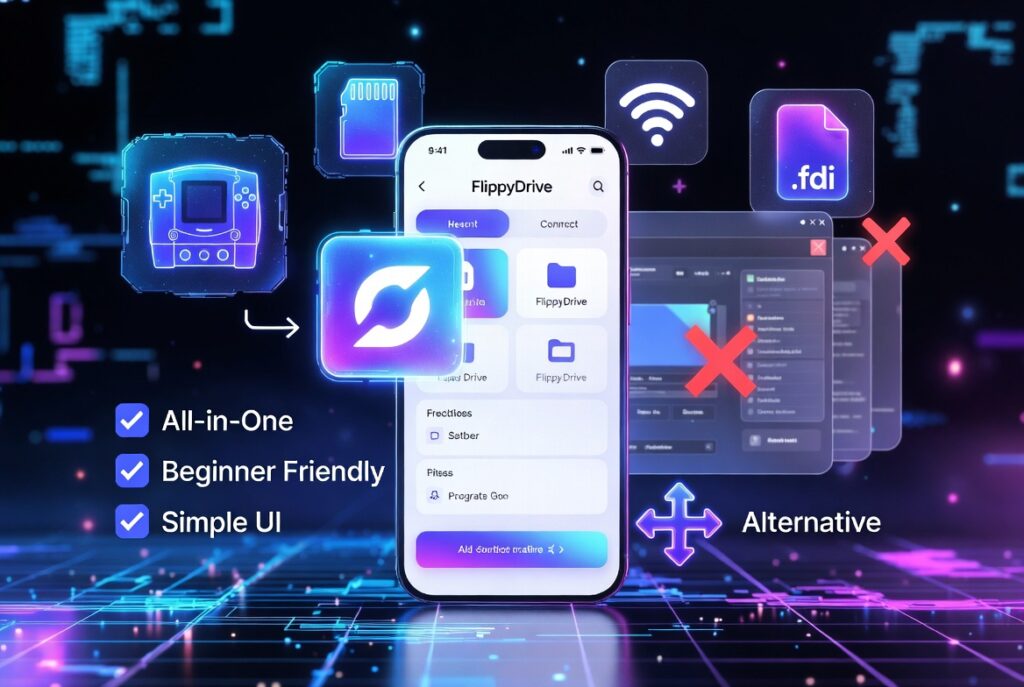
The flippydrive app feels different from old ways of managing GameCube games. Traditional methods often need more steps and extra programs. This app brings everything into one friendly window.
Other GameCube tools can be powerful but harder for beginners. The flippydrive app gives a nice balance of simple and strong. You can use the picture buttons for daily tasks and the text server when you want more control. Both options live in the same package, so you choose what feels best each day.
Future Updates and Roadmap
The team behind FlippyDrive listens to users and keeps making things better. People expect nicer streaming, more automation, and even smoother ways to handle save files in the coming months. Community ideas often turn into real new features.
To stay updated, check the official release page now and then. The app itself sometimes shows when a new version is ready. Small updates usually bring nice surprises without changing how you use it every day.
FAQ
Can I use the flippydrive app without Wi-Fi?
Yes, you can do most things with just a memory card plugged into your computer. Wi-Fi makes streaming easier but is not required for basic use.
How big can my memory card be?
Many people use large cards up to hundreds of gigabytes. The app helps you fit more games by making files smaller.
Does it work with all GameCube games?
Most games play wonderfully. A few special titles may need small setting changes, and the community keeps good lists of what works best.
Is the app safe for my computer?
It comes from the official makers and many people use it every day. Always download from trusted places.
Can kids use the flippydrive app?
With help from a grown-up for the first setup, yes. The buttons are big and clear, and everything explains itself nicely.
What if my game does not show up?
Make sure the file is in the right format and folder. Refresh the server and check the GameCube menu again.
How long do updates take?
Most updates finish in just a couple of minutes. The app and hardware work together to make it gentle and safe.
Do I need a powerful computer?
A normal home computer is enough. Compression works faster on stronger machines, but everything runs fine on regular ones too.
Conclusion
The flippydrive app brings so many good things together for your GameCube. It saves time, makes games easier to manage, keeps your collection safe, and lets you enjoy playing in new comfortable ways. Whether you are just starting or have loved GameCube for years, this tool feels like a kind helper by your side.
New users should begin with a few games and try the compression tool first. You will quickly see how much fun it adds to your hobby. Go ahead and give the flippydrive app a try with your FlippyDrive. Your GameCube will thank you, and you will have more time for what matters most — playing great games with friends and family.
Disclaimer:
This article shares general information based on public details about the FlippyDrive hardware and app. It is not official guidance. Always check the latest official sources for setup, safety, and updates. Results can change depending on your equipment and files. Use everything at your own comfort and follow all rules about game copies in your area.
About the Author